
Help Center › Run your bookings
Message templates
Create a template
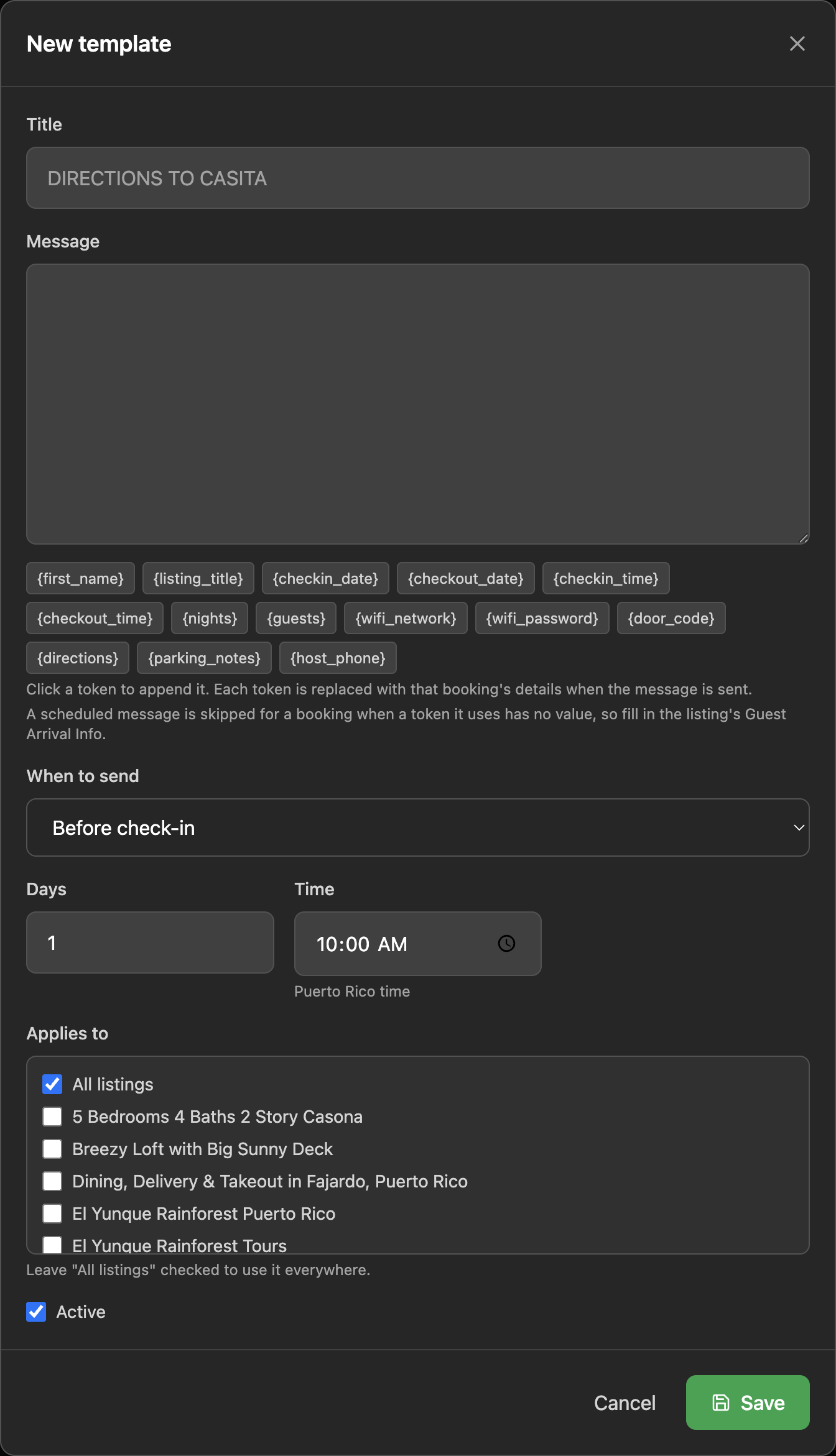
- Go to Admin › Email Templates. The panel is headed Guest Email Templates.
- Click New template.
- Fill in Title. For a scheduled template, the title is also the subject line of the email, so write it for the guest.
- Write the Message. Click a placeholder chip to add it. The chip adds to the end of your text, so move it where you want it.
- Choose When to send (see below), and for scheduled templates set Days and Time.
- Under Applies to, choose the listings.
- Tick Active and press Save.
Placeholders
Placeholders use single curly braces. They work in the title too.
| Placeholder | Filled with |
|---|---|
{first_name} | The guest's first name |
{listing_title} | The listing's title |
{checkin_date} {checkout_date} {checkin_time} {checkout_time} | From the booking |
{nights} {guests} | From the booking |
{wifi_network} {wifi_password} {door_code} {directions} {parking_notes} | The listing's Guest Arrival Info (private) section |
{host_phone} | Your company phone |
A missing value stops the whole message. If a scheduled template uses {wifi_password} and that listing has no WiFi password saved, the message for that booking is skipped, silently. Fill in Guest Arrival Info (private) on every listing a template applies to.
When to send
| Option | What happens |
|---|---|
| Not scheduled (send by hand) | Never sent automatically. Available as a quick reply. |
| Before check-in | Sent the number of Days you set before arrival. |
| Day of check-in | Sent on arrival day. |
| Before checkout | Sent the number of days you set before departure. |
| After checkout | Sent the number of days you set after departure. Good for a thank-you and review request. |
Scheduled messages go to the booking's main guest email, once per template per booking, during the hour you set in Time. The time zone is shown on the field's label. Cancelled bookings are skipped, and so are bookings with no guest email.
There is no "on confirmation" schedule. The confirmation email guests receive after paying is separate and always goes out by itself.
Applies to: all listings, or some
"All listings" means every guest of every listing gets it. This is the default. A template written for one home, such as driving directions or a door code, must have All listings unticked and only that home ticked. Otherwise guests of your other listings receive the wrong directions.
Only published listings appear in the list.
Use a template by hand
In Messages, open a message and click Quick reply, or click Reply and then Insert quick reply. All active templates are listed, scheduled ones included. Only the first name and the listing title fill in here. Replace any other placeholder before sending. See Reply to guests.
Good to know
- There is no sent-messages log in the admin yet. To test a schedule, make a booking for yourself with your own email.
- A message that fails to send is not retried.
- Deleting a template cannot be undone.
Related: Reply to guests · Handle a booking request
Still stuck? Email us.