
Help Center › Run your bookings
Handle a booking request
What the guest does
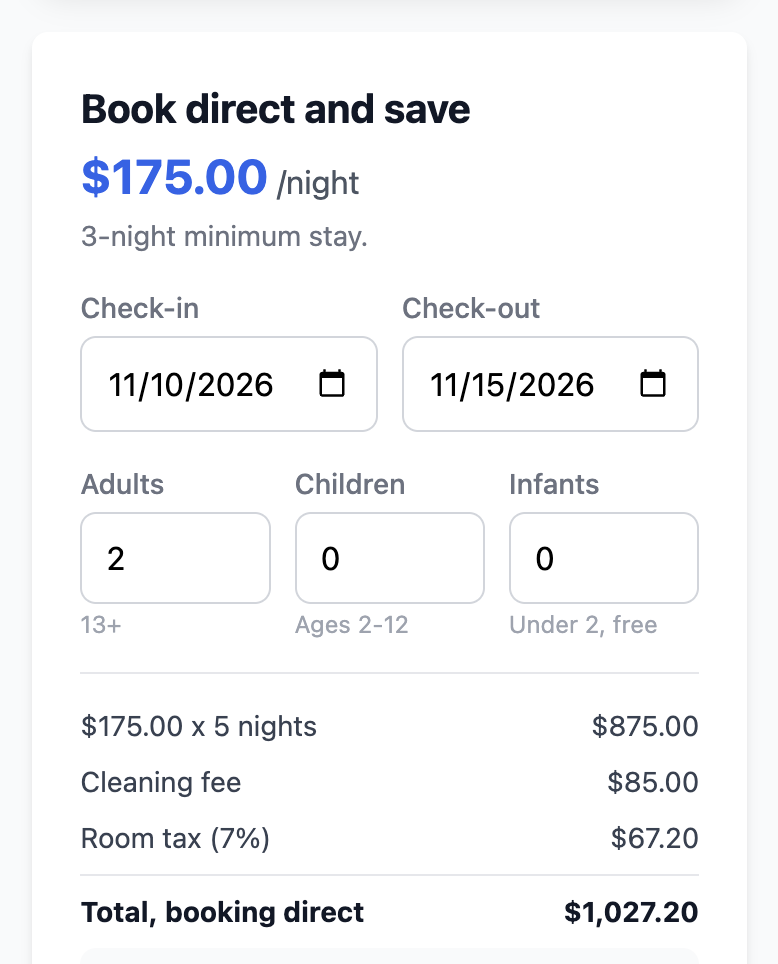
On a rental listing with a nightly price, the guest sees a card titled Book direct and save. They choose dates and guests, see a live quote (nights, extra guest fee, cleaning fee, room tax, total) and press Request to Book. The card tells them they will not be charged yet.
The guest gets a "Request received" email with their estimated cost. You can edit its wording under Admin › Company › Booking Request Email.
What you do
- Open the notification email and press Review & Book. The subject starts with INQUIRY and shows the listing and dates. If you are not signed in, you sign in first and land in the right place. Pressing the button creates nothing by itself.
- RESRA checks the dates against your own calendar and your live Airbnb calendar for that listing.
- If the dates are free, you see "Dates are available" and a booking opens already filled in: dates, guest name, email, phone, language, number of guests, nights, the amount and the guest's note. Check it and click Create Event.
- Send the payment link. The saved booking reopens by itself. Under Generate Payment Link, leave Email payment link to guest ticked and click Generate Payment Link.
- The guest pays. They have 24 hours. Once they pay, the booking turns to Paid and the confirmation goes out automatically. The details are in Connect Stripe.
If the dates are taken
You see "The requested dates are not available" and RESRA switches you to Messages with a reply already drafted. The draft offers up to two other open date ranges of the same length, and up to three of your other listings that are free for the original dates. Nothing is sent until you press Send reply, so edit it freely.
Check suggested listings before you send. The other listings in the draft are checked against your RESRA calendar only, not their Airbnb calendars. Look at each one before you offer it.
If you missed the email
Every request is also saved under the Messages tab, marked as a booking request, with the dates shown under Booking Information. The availability check only runs from the email button, so either find the email (search your inbox for INQUIRY) or create the booking by hand on the Calendar after checking the dates yourself.
Notification emails go to the addresses listed under Admin › Email › Notification Emails, plus every admin and owner user. Add a second address there if you tend to miss mail.
Before your first request: a checklist
- The listing is in a rental category and has a nightly Price. Without both, guests see a contact form instead of the booking card.
- Minimum nights, guests included, extra guest fee, cleaning fee, tax and deposit are set. See Deposits and tax.
- Your Airbnb calendar is connected, so the availability check sees those reservations. See Sync calendars with iCal.
- Book Up To (months ahead) under Admin › Company is set to how far out you accept bookings.
- Payments are switched on.
Messages you may see
- "The Airbnb calendar feed could not be checked." RESRA could not reach Airbnb. Confirm the dates in Airbnb yourself before taking payment.
- "Booking request not found." The message was deleted. Ask the guest to submit again, or create the booking by hand.
- "Save the booking first." The payment link button stays off until the booking has been created.
- "Link expired." Open the booking and click New to hold the dates for another 24 hours.
Related: Reply to guests · Connect Stripe · Sync calendars with iCal
Still stuck? Email us.